PDF Reader-Swift Doc Converter
Olasmg DigitalProductivity
4.56.00 Reviews
- Version
- 1.0.0
- Installs
- 10.00K
- Age Rating
- Everyone
Screenshots
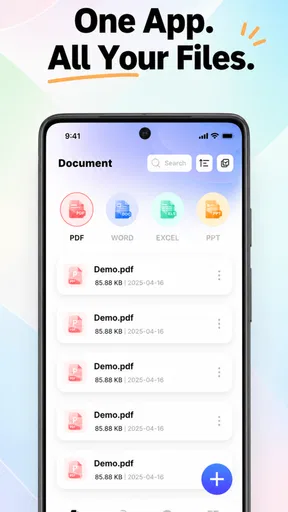
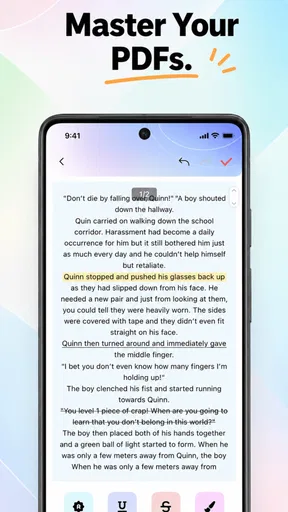
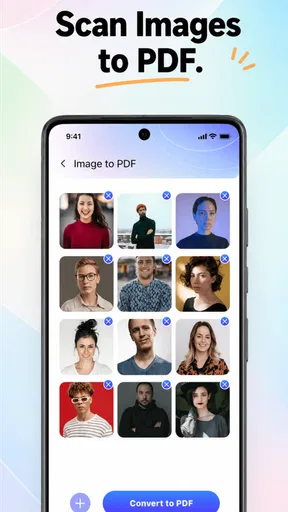
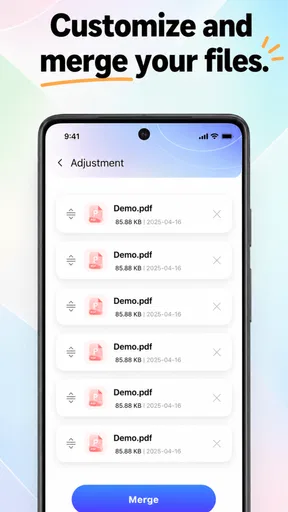
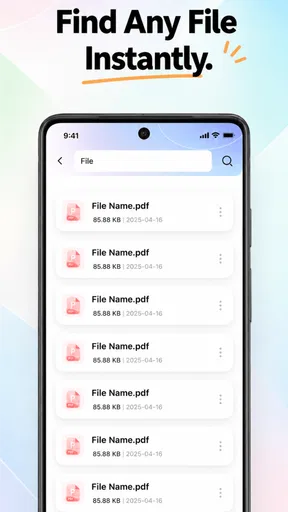
Our Review of PDF Reader-Swift Doc Converter
 Analysis by Appyee
I approached PDF Reader-Swift Doc Converter as a practical productivity tool rather than a flashy document suite. Its purpose is easy to understand: help you read PDFs and handle document conversion from one mobile app. That sounds simple, but document apps often become frustrating at the exact moment you need them most—when a file will not open, a conversion takes longer than expected, or the result does not look quite like the original.
My overall impression is that this app is most appealing to people who want a free, straightforward way to keep PDF reading and document handling together. It is developed by Olasmg Digital, has an average rating of 4.5 from around 180 ratings, and has passed the early stage of being an unknown download with over 10 thousand installs. Those figures suggest a modest but encouraging user base, although I would still treat it as a focused utility rather than a complete replacement for every office app on a phone.
The app is available at no cost and carries an Everyone age rating, which makes it easy to consider for personal use, schoolwork, household paperwork, or basic business documents. It runs on Android 8.0 and later, and the current release is version 1.0.0. That version detail matters: I would approach it as a young product and keep expectations realistic when comparing it with long-established document platforms.
Where PDF tasks usually get stuck
The first place users can run into trouble is before the app has done anything wrong: the document itself may be difficult to access. A PDF received through email, messaging, cloud storage, or a browser may not be stored where you expect. If it does not appear immediately inside a document picker or recent-files view, I would first check the original app that received it and use its share or open-with option. Searching randomly through folders wastes time and can make a simple access problem look like an app failure.
File names also matter more than people think. A document with a long name, unusual symbols, or several similar copies can be easy to overlook. Before opening it in the reader, I recommend renaming a working copy with a short, recognizable title. This is especially useful when you are converting several files and need to identify the output later. It is a small habit, but it prevents the common mistake of opening an older draft and judging the conversion from the wrong source.
Another point of friction is confusing reading with editing. A PDF can display perfectly and still be difficult to modify because many PDFs are fixed layouts rather than ordinary text documents. If you need to change a sentence, move an image, or preserve a complex form, the conversion process may be more important than the reading experience. I would decide first whether the goal is simply to view the file, extract usable content, or create a genuinely editable document. Those are different jobs, even when they start with the same PDF.
Large or image-heavy files can also behave differently from short text documents. A scanned contract, photographed worksheet, or brochure with many graphics places more demand on any mobile document tool than a few pages of selectable text. If a file opens slowly or a conversion takes patience, that does not automatically mean the app is broken. Give the process time, avoid repeatedly tapping the same command, and keep the original file available so you can retry without losing your starting point.
The most useful mindset is to treat every conversion as a new copy, not as a guaranteed mirror of the original. Layouts can shift, fonts can substitute, and page breaks can change when a fixed PDF becomes another document type. I would always inspect the first page, a page containing tables, and the final page before sharing the result. Those quick checks catch the errors that matter most without forcing you to reread an entire file.
What to check before blaming the reader
When a file will not open, I would work through the basics in a calm order. Confirm that the file has finished downloading, check that it still has a PDF extension, and try opening the same file from its original source. If the original app also struggles, the problem may be an incomplete transfer or a damaged file rather than the reader. Creating a fresh copy can help when the first download was interrupted.
It is also worth checking whether another app has kept the document locked in an unfinished action. For example, a file may still be previewing in a browser or waiting to be saved from an email attachment. Closing that preview and opening the saved copy gives the reader a cleaner starting point. I prefer this approach to repeatedly forcing the same file through different screens, because it makes it easier to identify where the failure actually occurs.
For everyday use, I would keep the original PDF untouched and work from a duplicate when conversion is involved. This is one of the most practical workflows for protecting invoices, forms, study notes, and signed documents. If the converted copy has an unexpected layout, you can return to the source instead of trying to reconstruct it. It also makes comparisons easier when you are deciding whether a conversion is good enough for editing or only suitable for reference.
Setup checks that prevent avoidable problems
Because this is a mobile productivity app, the first setup check is compatibility. The minimum operating system is Android 8.0, so phones running an older system are outside the supported starting point. On a compatible device, I would still make sure the operating system is reasonably current and that there is enough free storage for both the source document and any converted copy. A document app may open a small file with little space available, then fail when asked to create a larger output.
Storage is particularly important when working with scanned pages or documents full of images. Even if the original PDF is manageable, the converted result can need additional room. I would avoid beginning a conversion while the phone is nearly full, especially if the file is needed for a deadline. Clearing a little space first is safer than interrupting a process and then wondering whether the incomplete output can be trusted.
Before using the app for important paperwork, I recommend a small test with a non-sensitive file. Open it, move through several pages, and try the intended conversion workflow. This gives you a feel for where the output is saved and whether the result preserves the parts you care about. A short test is more useful than discovering during an urgent task that the document needs extra cleanup after conversion.
File organization is another setup detail that pays off later. I would create a simple habit: keep originals in one folder, converted working copies in another, and final documents in a clearly named destination. The app can be useful for handling the document, but it cannot compensate for a chaotic phone storage system. Clear names such as “lease-original” and “lease-edit” are more dependable than relying on a generic recent-files list.
Privacy should influence how you use it, even when a document app is free. I would avoid casually importing highly sensitive material until I am comfortable with the app’s behavior and the way my phone handles files. For ordinary reading, public forms, class handouts, or non-confidential notes, the risk feels easier to manage. For passports, medical records, financial statements, or legal documents, I would use extra care, retain the original, and avoid sharing converted copies until I have checked every page.
There is also a practical question about what “editing” means in your situation. If you only need to read, search, and keep PDFs available on your phone, a dedicated PDF viewer may feel more direct. If you need advanced annotations, collaborative comments, signature workflows, or precise desktop-style layout control, a larger office platform may be a better fit. I see this app’s value in bringing reading and conversion into one accessible place, not in promising that it replaces every specialized tool.
A reliable first-use routine
My preferred first-use routine is deliberately boring. I would start with a small, ordinary PDF, confirm that it opens correctly, and identify how to begin a conversion. I would then save the result under a new name and compare the opening page with the source. After that, I would inspect a page with dense text or a table, because simple pages can hide formatting weaknesses.
If the test works, I would move on to a file that resembles the documents I actually handle. A school assignment, meeting handout, or household form is a better test than a random sample because it reveals whether the app fits your real workflow. This approach also answers an important question quickly: is the app useful for your documents, rather than merely capable of opening a demonstration file?
Recovering a workflow when something goes wrong
When a conversion appears stuck, my first response would be to stop changing variables. Do not rename the source, move it between folders, close several apps, and start multiple conversions at once. Instead, note the file you used, wait briefly, and check whether a new output has appeared under a different name or in another location. Repeating the command can create duplicate files and make it harder to tell which result is complete.
If the output opens but looks wrong, compare it with the original in sections rather than judging the whole document at once. Check headings, paragraph spacing, page breaks, tables, and images. A conversion may be perfectly usable for extracting text but unsuitable for preserving a designed page. That distinction helps you choose the next step: clean up the converted copy, keep the PDF as the final version, or use a more specialized editor for that particular job.
For a failed attempt, I would return to the untouched original and try one controlled retry. Make sure the file is fully available locally, close unrelated apps if the phone is under strain, and use a short output name. If the same document repeatedly fails while other PDFs work, the source is likely the more important clue. It may contain unusual fonts, embedded elements, scans, restrictions, or a structure that is difficult for mobile conversion.
A useful recovery tactic is to divide a long document into smaller working sections when your task allows it. Instead of converting an entire report just to edit two pages, work with the relevant portion and keep the complete PDF as the reference copy. This reduces the amount of material to inspect and makes formatting errors easier to locate. It is not a magic fix, but it is a sensible way to isolate whether the problem is tied to a particular page or element.
When sharing a converted file, do one final visual pass on the phone itself. A document that looks acceptable in an editor may display differently in another viewer. Check the first and last pages, page numbering, tables, and any signature or form area. If the recipient needs the original appearance, send the PDF rather than assuming the converted version is equivalent. If they need editable text, tell them it was converted and make sure the important content survived.
Separating app trouble from document trouble
The app is not always the cause when a workflow fails. A damaged download, unsupported source structure, low storage, an older operating system, or a file that never completed saving can all produce similar symptoms. The fastest diagnostic method is comparison: try a second, uncomplicated PDF. If the second file works, focus your attention on the first document. If several simple files fail in the same way, then examine the phone, storage, and app state instead.
Network conditions can also confuse the diagnosis when the file is being obtained from another service. I would first make sure the document is actually stored on the device rather than being a temporary preview. Opening a local copy removes one layer of uncertainty. This is especially helpful when you are travelling, switching between Wi-Fi and mobile data, or working in a place with an unreliable connection.
Restarting the phone is a basic step, but it can be appropriate when the device has been running for a long time or several document apps have been used in succession. I would also avoid testing with a file that is simultaneously being edited elsewhere. Save a stable copy before importing it. That simple separation prevents a half-finished source from being mistaken for a conversion failure.
If you need a dependable result for a deadline, keep a backup route. The app may be perfectly suitable for routine reading and basic conversion, yet a desktop editor or another established document tool could be the safer choice for a complex report. That is not a criticism of this particular app; it is a sensible distinction between convenience on a phone and precision on a larger platform.
Who will benefit, and who should choose something else
I think this app suits Android users who regularly receive PDFs and want a single place to read them and attempt document conversions without paying for access. Students can use it for handouts and assignments, families can keep forms and letters together, and workers can use it for quick reference when away from a computer. Its free price lowers the barrier to trying it, while the Everyone rating makes it approachable for a broad audience.
It is also a reasonable option for someone who dislikes switching between a PDF viewer and a separate conversion utility. That combined workflow is its clearest practical appeal. Instead of opening a file in one app, exporting it, locating the result elsewhere, and then searching for an editor, you can begin with a tool designed around document handling. The benefit is less about advanced power and more about reducing small interruptions.
I would be more cautious if your work depends on exact visual fidelity. Designers, accountants working with intricate tables, legal professionals handling final documents, and anyone preparing a polished publication should inspect every converted page or use a tool built for precise layout preservation. The same applies if you need extensive annotations, team collaboration, or sophisticated document automation. A general reader and converter may not be the right center of that workflow.
Compared with a basic PDF reader, this app is more attractive when conversion is part of the task. Compared with a full office suite, it may feel lighter and less intimidating for someone who mainly reads PDFs and occasionally needs another format. The trade-off is that a focused mobile utility may require more manual checking than a mature desktop workflow. I would choose it for convenience, not because it eliminates the need to understand the document you are creating.
My practical verdict after using it
PDF Reader-Swift Doc Converter makes sense as a free Android productivity app for straightforward PDF reading and document conversion. I like the idea of keeping those related tasks together, and the app is easy to recommend for casual paperwork, study material, and quick mobile document work. The encouraging 4.5 average and growing install base make it worth considering, while its version 1.0.0 status reminds me to use it thoughtfully rather than assume the maturity of a long-established suite.
The best results come from a careful workflow: use a local copy, keep the original untouched, test with an ordinary file, inspect the converted output, and separate document problems from app problems. Those habits are more important than repeatedly pressing a conversion button. They protect your files and give you a clear answer when something goes wrong.
I would recommend it to a friend who wants a no-cost way to read PDFs and handle occasional conversions on an Android phone running Android 8.0 or newer. I would not make it my only tool for sensitive, highly formatted, or deadline-critical documents until I had tested those exact document types. Used within that boundary, PDF Reader-Swift Doc Converter is a practical convenience app rather than an all-purpose office replacement, and that is a perfectly useful role.
Verdict
Strengths of PDF Reader-Swift Doc Converter
- Opens PDFs quickly, even when switching between several saved documents.
- Useful search tool helps locate words or phrases inside long files.
- Supports convenient page thumbnails for faster document navigation.
- Clean interface makes basic reading comfortable for most users.
- Can reduce the need for separate PDF and document utility apps.
Limitations of PDF Reader-Swift Doc Converter
- Advanced editing tools may be limited compared with dedicated PDF software.
- Large files can take longer to load on older phones or tablets.
- Some conversion features may require in-app purchases or subscriptions.
- Formatting may change when converting complex documents or tables.
- Privacy details should be checked before uploading sensitive files for conversion.
Other Releases by Olasmg Digital
View All
Smart PDF Reader & PDF Viewer
Tools4.4
Similar Picks in This Category
View All
Google Calendar
Google LLC4.6

Google Drive
Google LLC4.3

Google Assistant
Google LLC3.9

Microsoft OneDrive
Microsoft Corporation4.6

Samsung Calendar
Samsung Electronics Co., Ltd.4.1

Microsoft OneNote: Save Notes
Microsoft Corporation4.6
Frequently Asked Questions
What is PDF Reader-Swift Doc Converter used for?
PDF Reader-Swift Doc Converter is designed for opening, viewing, and managing PDF documents on a mobile device. Depending on the available tools in your version, it may also help convert supported files, organize documents, search within pages, and share files with other apps. It is useful for reading reports, forms, manuals, receipts, and other documents without needing a desktop computer.
Can PDF Reader-Swift Doc Converter convert documents into PDF or other formats?
The app’s main appeal is its document conversion functionality, but the exact input and output formats can vary by device, operating system, and subscription level. Before downloading or starting a conversion, check whether your required formats—such as Word documents, images, or text files—are supported. Complex layouts, scanned pages, tables, and unusual fonts may not convert perfectly.
Does PDF Reader-Swift Doc Converter require an internet connection?
Basic PDF reading is often available offline once a document has been downloaded to your device. However, some features may require an internet connection, particularly cloud processing, online conversion, document synchronization, or access to files stored in external services. If you frequently travel or work without reliable connectivity, test the offline reading and file-management functions before depending on the app.
Is PDF Reader-Swift Doc Converter free to use?
The application may offer free access to basic reading features while placing advanced tools behind in-app purchases, a premium plan, or usage limits. Conversion options, processing frequency, cloud storage, editing tools, and an ad-free experience can differ between free and paid versions. Review the pricing page and subscription terms carefully, especially if a free trial automatically changes into a recurring subscription.
Is PDF Reader-Swift Doc Converter safe for private or confidential documents?
You should review the app’s privacy policy and permissions before importing sensitive files such as identification documents, contracts, financial records, or medical information. If conversion is performed online, the file may be uploaded to remote servers for processing. Use trusted networks, avoid unnecessary permissions, and delete temporary files or cloud copies when possible. For highly confidential documents, confirm the developer’s security practices first.
